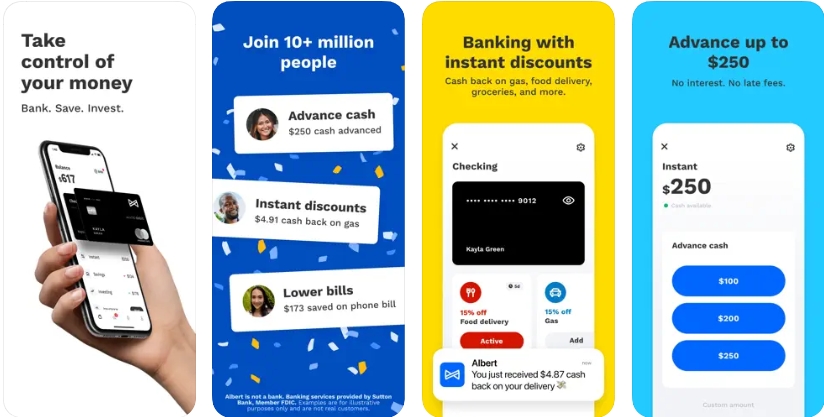
Albert is a mobile app available for Android and iOS devices that aims to provide users with financial management and budgeting tools. The app offers various features and services to help individuals track their income, expenses, and savings. Users can connect their bank accounts, monitor their transactions, and receive insights into their spending habits.
Mobile App Features
The Albert app offers several key features to help users manage their finances effectively:
Budgeting. The app allows users to track their income, expenses, and savings in one place. It provides insights into spending habits, categorizes transactions, and helps users set and achieve financial goals.
Cash Advances. With the "Instant" service, users can request cash advances without undergoing a credit check. The app considers factors like income and repayment history to determine eligibility for these advances.
Financial Monitoring. Albert provides 24/7 monitoring of users' financial accounts, alerting them to potential threats and suspicious activity. This helps ensure the security of their funds and protects against fraudulent transactions.
Cashback Rewards. Users who have the Albert Cash debit card can earn cashback rewards on eligible purchases, such as gas, groceries, and delivery services. This feature provides additional savings and benefits for users.
Access to Financial Experts. Through the "Genius" feature, users can consult a team of financial experts to seek guidance and advice on various financial matters. This personalized support helps users make informed decisions and improve their financial well-being.
User-Friendly Interface. The app offers a user-friendly design, making it easy for users to navigate and access the various features. The interface provides a clear overview of users' financial information and helps them stay organized.
How to Download
Android:
Open the Google Play Store on your Android device.
Search for "Albert: Banking on you" in the search bar at the top of the screen.
Locate the Albert app in the search results.
Tap on the Albert app icon to open its Google Play Store page.
On the app page, tap the "Install" button.
Review the app permissions, if prompted, and tap "Accept" to proceed with the installation.
Wait for the app to download and install on your device.
Once the installation is complete, you can find the Albert app on your device's home screen or in the app drawer. Tap on the app icon to open it.
iOS:
Open the App Store on your iOS device.
Tap on the search tab at the bottom-right corner of the screen.
Enter "Albert: Banking on you" in the search bar at the top of the screen.
Locate the Albert app in the search results.
Tap on the Albert app icon to open its App Store page.
On the app page, tap the "Get" button or the cloud download icon.
If prompted, authenticate with your Apple ID (Touch ID, Face ID, or password) to initiate the download.
Wait for the app to download and install on your device.
Once the installation is complete, you can find the Albert app on your device's home screen. Tap on the app icon to open it.
Note: The availability and compatibility of the Albert app may vary depending on your device's operating system version and regional restrictions.
How To Apply in the App?
To apply for a cash advance through the Albert app, you can follow these steps:
Download and install the Albert app from your device's app store (Google Play Store for Android or the App Store for iOS).
Open the Albert app and create an account by providing the required information, such as your name, email address, and phone number.
Once your account is set up, you will be prompted to link your bank account to the app. Follow the instructions to securely connect your bank account.
After linking your bank account, navigate to the cash advance section within the app.
Enter the amount of cash advance you would like to request. Keep in mind that the maximum cash advance limit is typically $250, but it may vary based on your eligibility.
Review the terms and conditions associated with the cash advance, including any fees or repayment details.
Submit your cash advance request through the app.
Albert will review your request and determine your eligibility based on factors such as your income, bank account history, and repayment behavior.
If approved, the cash advance funds will be deposited into your linked bank account, typically within a short period of time.
It's important to note that the exact application process and eligibility criteria may vary, and additional documentation or steps may be required based on your specific circumstances.
How to Make Payments Through the App?
To make payments through the Albert app and repay your cash advance before the due date, you can follow these steps:
Open the Albert app on your device.
Sign in to your account using your registered credentials.
On the Albert home tab, locate and tap on the Instant card.
In the upper right-hand corner of the Instant home screen, tap on the gear symbol.
Look for the "Status" section and tap on "Repay now".
Select the amount you would like to repay from the available options.
Tap on "Continue" to proceed with the repayment.
Your repayment will be processed shortly.
By following these steps, you can make payments and repay your cash advance in the Albert app before the scheduled due date.
Note: Albert automatically detects your next paycheck date and attempts to withdraw the exact amount advanced, along with any rush fees, on that date. Furthermore, there is no interest charged on the cash advance.
How to Delete the App?
To delete the Albert app from your device, you can follow these general instructions:
Locate the app icon on your device's home screen or app drawer.
Press and hold the app icon until a menu or options appear.
Look for an option that says "Uninstall", "Remove", or a trash bin icon. It may vary depending on your device and operating system.
Drag the app icon to the "Uninstall" or trash bin icon, or select the appropriate option from the menu.
A confirmation message may appear, asking if you want to uninstall the app. Confirm your choice to proceed with the deletion.
The app will be uninstalled from your device, and its icon will no longer appear on your home screen or app drawer.
Note: the exact steps may vary slightly depending on the device model, operating system version, and customization by the manufacturer. If you are having trouble deleting the app, you can refer to the user manual of your device or consult the support documentation provided by the manufacturer.
FAQ
Can I Invest in the Albert App?
Yes, Albert is an app that helps its customers make wise investments throughout their lives. The app is also widely known for its free cash advance and multiple tools to assist clients in saving their money and budget.
Is There a Monthly Fee for Albert?
Albert does not charge any monthly fees for the regular use of Its Albert Cash account. The clients that use Genius can also access Albert's network systems of ATMs for free withdrawals. Note that non-subscribers can withdraw their money only for a small $2.50 fee.
Why Can't I Access My Albert App?
There could be several reasons why you may be experiencing difficulty accessing your Albert app. Here are a few common troubleshooting steps you can try:
Check Your Internet Connection. Ensure that you have a stable internet connection, either through Wi-Fi or cellular data. Poor or no internet connectivity can prevent the app from loading or functioning properly.
Update the App. Make sure that you have the latest version of the Albert app installed on your device. Developers often release updates to fix bugs and improve performance. Go to your device's app store (Google Play Store for Android or App Store for iOS) and check for any available updates for the Albert app. If an update is available, install it and try accessing the app again.
Restart Your Device. Sometimes, restarting your device can resolve temporary glitches or issues. Try turning off your device completely, then turn it back on and attempt to access the Albert app again.
Clear Cache And Data (Android only). If you're using an Android device, you can try clearing the cache and data of the Albert app. Go to your device's Settings, then navigate to Apps or Application Manager. Find the Albert app in the list of installed apps, tap on it, and look for options to clear cache and data. Keep in mind that clearing data will remove any app-specific settings or preferences, so you may need to log in again.
Contact Customer Support. If the above steps don't resolve the issue, it's recommended to reach out to Albert's customer support team for further assistance. They will be able to provide specific troubleshooting steps or investigate any technical problems that may be affecting your app access.